www.idprt.com

Technical Guide

How to Choose the Right Label Size: Matching Printer, Label & Scanner

Choosing the right barcode label size isn’t just a design choice—it’s a system decision. The label must provide enough usable area to print a scannable barcode (quiet zone included), fit within your printer’s printable width, and still scan reliably at your required reading distance.

Most problems happen when teams pick a label first, then discover the printer can’t print close enough to the edge, the sensor can’t detect gaps consistently, or the barcode is too dense to scan at distance. This guide shows a practical workflow: confirm printable width and sensor limits, set density using DPI + X-dimension, then validate scans on the actual device and distance before ordering labels in volume.

Why Label Size Is a System Decision — and What You Must Match

In AIDC, "standard" rarely means "compatible."

Labels that are too small force excessive barcode density and cause no-reads; labels that are too large waste material and often push layouts into the quiet zone. In both cases, the failure isn’t cosmetic—it’s operational.

The only reliable approach is to treat label sizing as a system decision, not a design choice. Three constraints must align:

  • 1 Printable width defines how much of the label the printer can actually image. Every printer has non-printable margins near the edges; ignoring them risks clipped bars and unreadable codes.
  • 2 Barcode density, controlled by printer DPI and X-dimension (module width), determines whether the barcode can be rendered cleanly at the required size. Forcing high-density barcodes onto small labels often leads to poor edge definition and scan failures.
  • 3 Scan distance sets the minimum symbol size the scanner can resolve in real operation. As distance increases, barcode modules must grow—by increasing label width, symbol size, or X-dimension.

A reliable workflow always follows this order:

confirm printable width → set barcode density (DPI + X-dimension) → validate scans at the actual reading distance before committing to label media.

Step 1 – What Printable Width Can Your Printer Actually Handle

Before ordering label rolls, confirm what the printer can physically handle and what it can actually print. Those are not the same.

Printable Width vs. Label Width

Printable Width vs. Label Width

Every printer has a maximum media width and a narrower maximum printable width. A "4-inch printer" may hold a 4.25-inch roll, yet only print across about 4.09 inches. When layouts ignore that margin, barcodes get clipped at the edge and scan performance collapses.

Recommendation: Keep critical elements away from both edges. Leave a buffer. Printheads do not forgive tight layouts.

Pro Tip: A 4-inch printer isn’t only for 4×6 shipping labels. With proper media guides and calibration, it can run smaller formats such as 2×1 or 1×1 labels—if the sensor can detect the gap reliably.

Roll vs. Fanfold + Core Size

Labels typically arrive as rolls or fanfold stacks. Hardware compatibility depends on both.

  • Core size: Desktop printers commonly use a 1-inch core. Industrial models often require a 3-inch core.
  • Outside diameter (OD): Industrial printers may accept 8-inch OD rolls. Many desktop models top out around 5-inch OD.

Recommendation: Verify the printer’s internal compartment dimensions before buying bulk media. OD mismatch is a classic "it should fit" mistake that stalls deployment.

Minimum Label Length + Gap Detection (Sensors)

Printers rely on sensors to detect the gap or black mark between labels. Many models have a minimum label height (often around 0.125" to 0.5"). When labels fall below that threshold, calibration fails. The result is familiar: skipped labels, misfeeds, or "media out" errors on a perfectly full roll.

Recommendation: If labels are short, confirm sensor type (gap/black mark) and run test calibration before committing to volume orders.

Step 2 – Label Sizes by Application (Shipping, Retail, Compliance)

Once the printer’s printable limits are clear, the decision flow reverses.

The question is no longer how small a label can be, but how large it must be to meet carrier, retailer, and compliance requirements. When such rules apply, label size becomes a fixed threshold—not a design choice.

Application-Specific Label Size Requirements: Carrier & Retailer Specs

Baseline only; verify the latest carrier/retailer specs.

Carrier/Retailer Required Barcode Type Minimum Label Size DPI Recommendation Quiet Zone (recommended baseline)
Amazon FBA Code 128 (FNSKU) 2.5" × 1.75" (common minimum) 203–300 ≥0.125"
FedEx Ground Shipping label barcodes (as required) 4" × 6" (standard) 203 ≥0.1"
UPS Shipping Shipping label barcodes (as required) 4" × 6" (standard) 203–300 ≥0.1"–0.125"
Pharmacy / Healthcare 2D (Data Matrix) 1" × 1" (common; varies by package) 300 (typical) Keep clear space per symbology (baseline ≥0.1")
Chemical / GHS Compliance 1D/2D (varies by workflow) + GHS elements 4" × 6" or larger 300 (minimum) Allow extra clear space
Retail POS (EAN-13 / UPC-A) UPC-A or EAN-13 1.46" × 1.02" (common baseline) 300–600 ≥0.125" clear space (baseline; validate to spec)

Carrier requirements and GS1-based barcode practices define minimum readable layouts in real operations. Treat the table values as baseline constraints, then validate with your scanner and read distance.

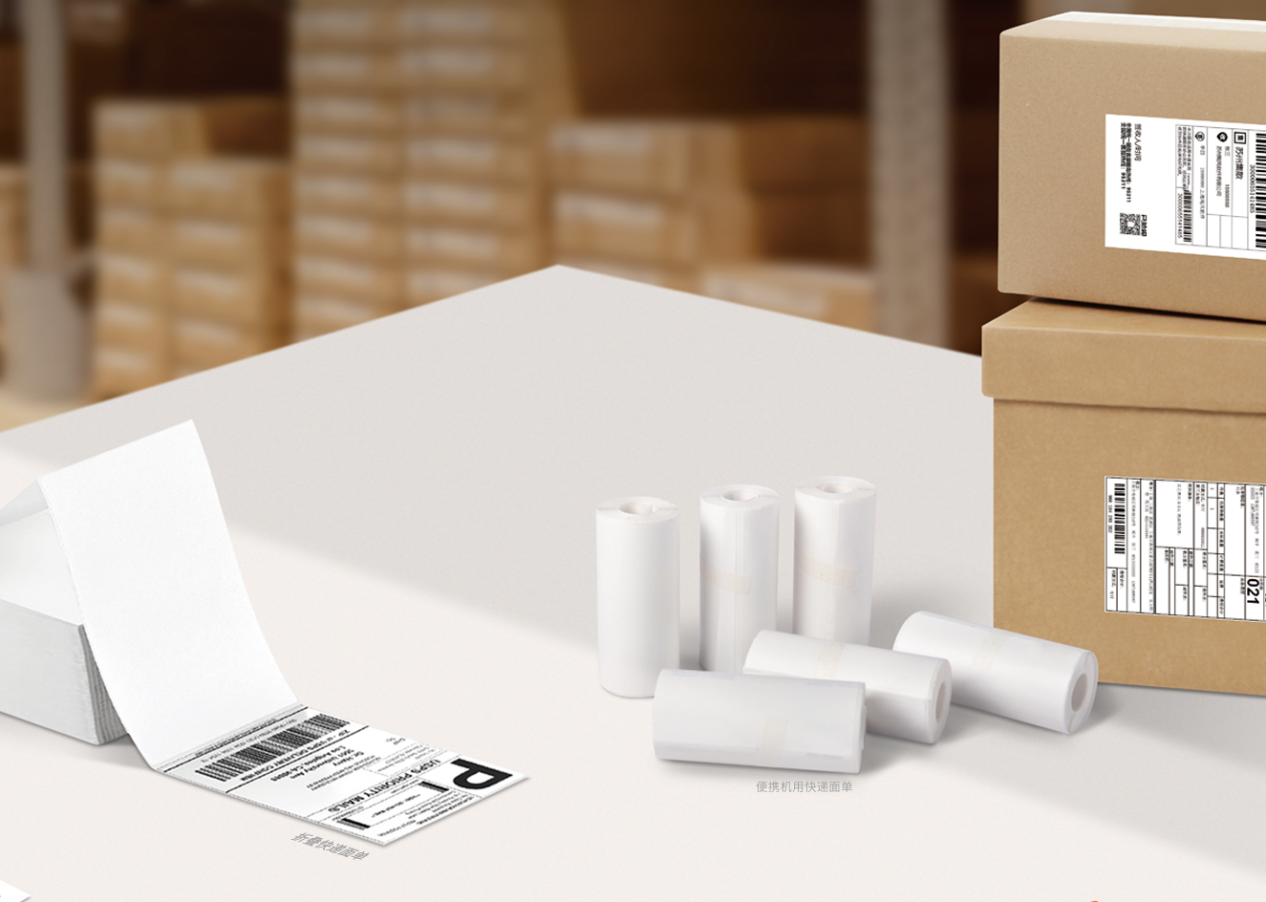
Shipping & Carton Labels

  • Common sizes: 4"×6", 4"×8"

Why 4"×6" works: Carriers need space for the shipping barcode, addresses, routing codes, and a clean quiet zone.

Recommendation: Keep the carrier barcode large and clean. Avoid squeezing logos or extra text into the quiet zone.

Shipping Label

Rack / Bin / Pallet Labels

  • Rack labels: 3"×10" or 4"×6" (often long-range)
  • Bin/shelf labels: 2"×1", 3"×2"

For rack locations, width matters more than height. Wider barcodes allow a larger X-dimension.

Recommendation: If long-range scanning is required, stop thinking in label height. Think in module size and contrast.

Asset & Equipment Labels

  • Common sizes: 1.5"×0.75", 2"×0.5"

Small assets push barcode density up. With a 203 DPI printer, many tiny 1D barcodes become marginal—especially after abrasion, oil, or glare enters the picture.

Recommendation: For small assets, prioritize 300 DPI (or 600 DPI when modules become extremely small). A cheap label that fails scans costs more than a better print engine.

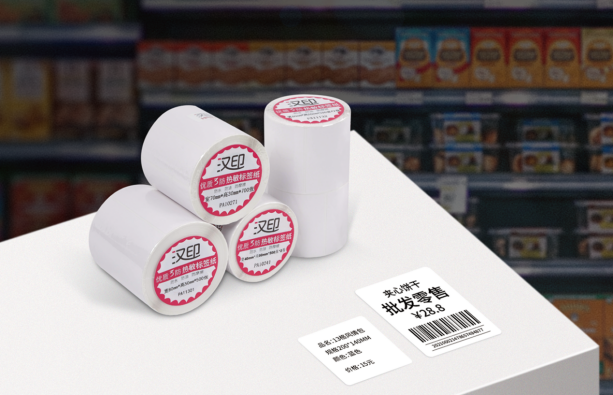
Retail Price & Shelf Labels

  • Price tags: 1"×2", 1.25"×2.25"
  • Shelf talkers: 1"×3", 1.5"×3"

Retail labels balance branding, price readability, and scan performance.

Recommendation: Protect the barcode first. Design should adapt to scan rules.

Retail Shelf Label

Compliance & Hazard Labels

  • Typical sizes: 4"×6" or larger

Compliance labels must carry GHS symbols, warning text, and regulatory icons. Space disappears quickly. Material choice matters too—chemical exposure demands durable synthetics.

Recommendation: Allocate enough area for compliance content without compressing the barcode. If chemicals are present, use synthetic stock and the appropriate ribbon.

Step 3 – How Does DPI Affect Barcode Readability

Most "mystery scan failures" come from this mismatch: label size forces barcode density beyond what the print engine can produce cleanly.

How DPI Affects Barcode Module Size (X-Dimension)

DPI controls the smallest dot a printer can render. Smaller dots allow smaller modules. That’s the entire game.

  • 203 DPI: Works well for large labels and typical 1D barcodes
  • 300 DPI: Strong default for 2D codes (QR, Data Matrix) and smaller asset labels
  • 600 DPI: Used for electronics labeling or very small components (sub-0.5" labels)

Recommendation: Don’t choose DPI based on marketing. Choose it based on the smallest module the barcode requires.

Minimum Barcode Size Guidelines (1D vs. 2D)

Use these as safe starting points:

  • 1D (Code 128): Minimum height ~0.25" (width depends on data length and X-dimension)
  • 2D (QR/Data Matrix):
    • At 203 DPI, avoid going below ~0.4" × 0.4"
    • At 300 DPI, ~0.25" × 0.25" is often workable

Recommendation: If scan distance increases, increase X-dimension or symbol size. Tiny codes and long-range scanning rarely coexist peacefully.

Common Mistakes That Kill Scan Rates

  • The "Squish" effect: Forcing a long 1D barcode onto a narrow 1" label by shrinking width. Bars become too thin. Scanners fail.
  • Hard scaling barcode images: Resizing a barcode graphic instead of generating it at the printer’s native resolution. This introduces distortion and uneven edges.

Recommendation: Generate barcodes natively in software at the target DPI and X-dimension. Avoid "scale to fit" whenever possible.

Need a practical reference for choosing label materials, adhesives, and thermal transfer ribbons?

See: How to Choose the Right Labels for Your Barcode Printer

Step 4 – Match Label Size to Scanner Type & Reading Distance

Scanner type determines how forgiving the system is. Reading distance decides how big the target must be.

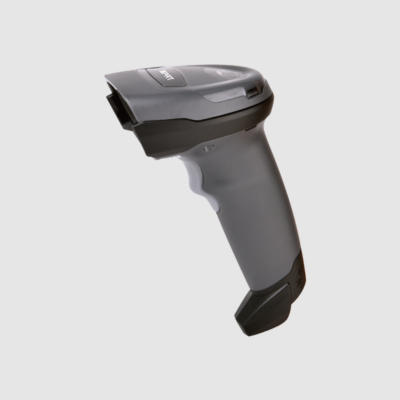
Handheld Scanner

Handheld Scanners (Close-Range Picking, Receiving, and POS Workflows)

Handheld scanners are optimized for close-range work. For models like the HN-3208SR, typical working distance depends on code size and symbology, but often falls in the ~2–30 cm range. Smaller or higher-density codes push the operator closer, while larger symbols scan farther.

When barcodes are undersized, operators spend time "hunting" for the sweet spot. That delay compounds across shifts.

Recommendation: Optimize for fast acquisition—keep adequate quiet zone, avoid compressing the X-dimension, and size the symbol for the real scan distance rather than the theoretical minimum.

Presentation Scanner

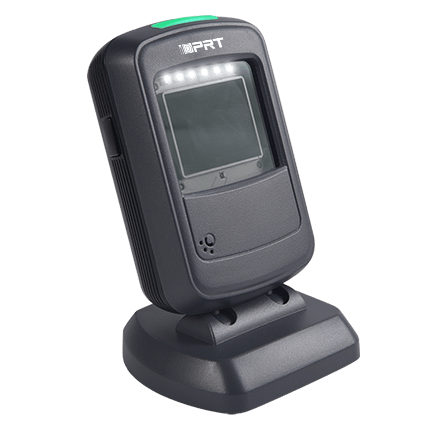
Standing Presentation Scanners (Counters, Ticketing, and Desktop Workstations)

Standing presentation scanners are designed for fast, repetitive scanning at service counters and desktop workstations. Hands-free operation and auto-sensing activation reduce dwell time because the scanner triggers as a code approaches the window—useful when items move quickly across a counter or when operators need both hands.

Models such as the HP-2208SR Omnidirectional Standing Barcode Scanner support both paper and screen barcodes, offer a wide-angle adjustable scan window, and provide common interfaces (e.g., USB/RS-232) for easy POS or host integration.

Presentation scanning is typically short-range, so the priority is fast acquisition: larger modules, strong contrast, and glare control—especially for screen barcodes.

Recommendation: For presentation scanning, protect readability by keeping adequate quiet zone, avoiding glossy glare on labels/screens, and scaling the barcode up when the workflow requires faster "pass-through" scanning instead of careful aiming.

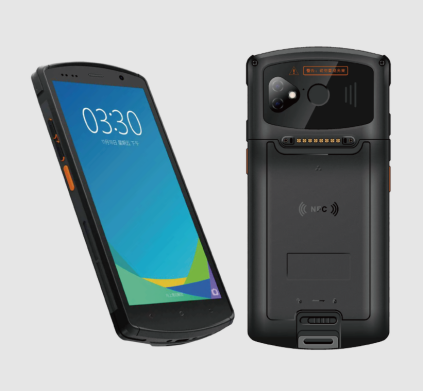
Smart PDA Scanner

Smart PDA Scanning (Rugged Mobile Computers)

Smart PDAs are built for repetitive, high-volume scanning in warehouses, retail backrooms, and receiving lines. A device with a dedicated barcode scanning engine captures 1D/2D codes faster and with fewer "no read" interruptions when labels are slightly wrinkled, aging, or scanned on the move.

Models such as M2 Plus 4G Smart PDA Handheld Terminal are positioned for these workflows, combining an industrial-grade scanning module with mobile connectivity (including 2G/3G/4G) for real-time data capture and sync in the field.

Recommendation: Maintain a clean quiet zone and avoid compressing X-dimension. As read distance increases, scale the symbol up instead of tightening the layout. When label space is limited, follow the DPI and density rules in Step 3 rather than "shrinking to fit."

Step 5 – Printer × Label × Scanner Matrix (Quick Reference)

Use this table to sanity-check component alignment before rolling out media at scale.

Application Printer Type Typical DPI Recommended Label Size Barcode Type (Typical) Scanner Type
E-commerce Shipping 4" Desktop / Industrial 203 4"×6" 1D + 2D (carrier labels) Handheld Imager
Warehouse Racks (Long-range) 4" Industrial 300 (typical) 3"×10" (long) 1D (larger X-dimension) / 2D Extended-Range Scanner
Small Asset Tracking 2" or 4" Desktop 300–600 1.5"×0.75" 2D / compact 1D HD 2D Handheld Imager
Pharmacy / Vials 2" Desktop 300 1"×1" or Wrap 2D (Data Matrix) 2D Area Imager
Bin / Shelf Location 2" or 3" Mobile 203 2"×1" 1D / 2D Rugged Mobile Computer (PDA)

How to use this matrix: Pick the application row, confirm printer class and minimum DPI, then validate scanner type and reading distance. If the scanner requires long-range reads, increase X-dimension or label width before ordering stock.

Final Checks Before Choosing a Label Size (Common Pitfalls + Checklist)

Before ordering labels in volume, use this final check to avoid rework and scan failures.

Common pitfalls:

  • • Ignoring the printhead margin
    Most printers can’t print to the absolute edge. Leave a 1.5–3 mm buffer so critical bars don’t get clipped.
  • • Sacrificing the quiet zone
    If text, borders, or graphics touch the barcode, scan performance drops. Maintain at least 0.1 inches of clear space (baseline; validate to symbology spec).
  • • Leaving no room for growth
    Labels that barely fit today’s data won’t survive future requirements (lot numbers, date codes, compliance icons). Rework is expensive.

Final checklist:

  • Does label width fall within the printer’s maximum printable width?
  • Is the roll core size (1" vs 3") compatible with the printer?
  • Does barcode density match the printer’s DPI and required X-dimension?
  • Is there adequate quiet zone around the barcode?
  • Can scanners read the code at the required distance and speed?
  • Is there room for future fields (lot/date/compliance symbols)?

Recommendation:

Design labels for the next revision, not only the current spec sheet.

FAQ: Label Size, Printers, and Scanners

Q1: Can a 4-inch printer print multiple small labels across the width?

Yes. Use multi-up layouts (for example, two 2-inch labels side-by-side). Confirm the software supports the layout and confirm the sensor can detect gaps consistently. Multi-up fails most often when gap settings are wrong.

Q2: Is a 300 DPI printer required for standard 4×6 shipping labels?

No. 203 DPI is widely used for shipping labels and typically scans reliably across carrier networks. Move to 300 DPI when barcode density increases or label sizes shrink.

Q3: What happens if a label is too small for the scanner?

Scan rates drop. The scanner can’t resolve individual bars or 2D modules, leading to no reads, manual entry, and throughput loss—exactly where operations least want it.

Need Help Matching Label Size to Your Current Hardware?

Accurate label sizing reduces scan failures, reprints, and downtime. Share printer models, label material, barcode type, and scan distance requirements. Technical support can recommend label dimensions and print settings for reliable performance.

Contact us for a custom media consultation
Naše webová stránka používá soubory cookies, aby vám poskytla lepší zkušenost. Pokračováním v prohlížení souhlasíte s používáním cookies. Zásady ochrany osobních údajů

Odeslat dotaz

Odeslat dotaz

    Vyplňte prosím své jméno, e-mail a požadavek

©2024 Xiamen Hanin Co., Ltd. Mapa stránek
Desktop Barcode Printer, Industrial Barcode Printer, Mobile Printer, RFID Barcode Printer, Card Printer, PDA, Barcode scanners- iDPRT